MPM Free Editor 2.0
The MPM editor provides an intuitive interface for crafting and refining your Midjourney and other ImageGen AI prompts seamlessly.
Base Prompt
The Base Prompt section is your starting point for every image creation. Here you'll enter your creative vision, access quick actions, and see your complete prompt assembled in real-time. As you make selections throughout the editor—parameters, styles, and references—watch your Key Prompt update instantly, ready to copy with a single click.
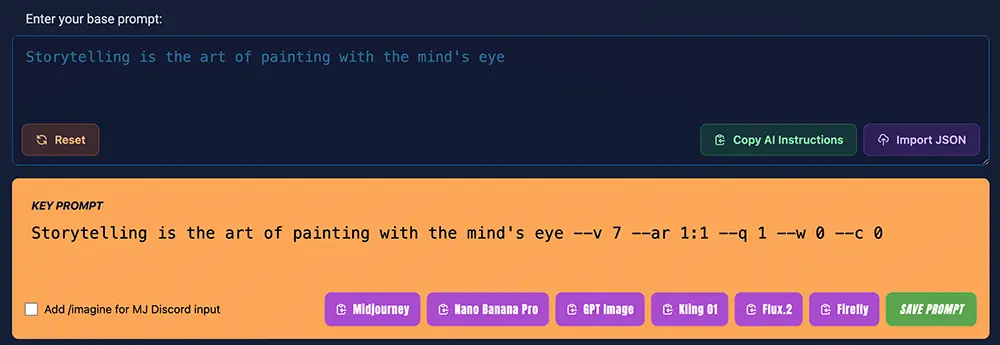
Text Input Field
The foundation of every Midjourney creation starts with your creative vision expressed in natural language.
- • Text Input - Write your creative vision in natural language. Describe scenes, subjects, moods, and artistic styles in your own words.
- • Live Preview - Watch your Key Prompt update in real-time as you type. See exactly what will be sent to Midjourney, including all parameters and style selections.
AI Prompt Builder
Don't know where to start? Use the AI Prompt Builder to create professional prompts through a guided conversation. Simply describe your creative vision in plain language, and our AI agent will help you craft detailed, optimized prompts—complete with style suggestions, composition guidance, and Midjourney-specific parameters.
Read the AI Prompt Builder GuideKey Prompt
The Key Prompt is where everything comes together. Your base prompt text, Midjourney parameters, reference image URLs, and MPM style selections are automatically assembled into a single, complete prompt string—ready to paste directly into Midjourney, Discord, or other AI image generation tools.
- • Live Assembly - Watch your prompt build in real-time as you type and make selections. Every parameter, style, and reference is instantly reflected in the Key Prompt display.
- • One-Click Copy - Instantly copy your prompt to clipboard with a single click. Use the row of format buttons to copy optimized prompts for Midjourney, Nano Banana Pro, GPT Image, Kling, Grok, Flux.2, Firefly, and other AI image generators.
- • Save Button - Store your prompt to your library for future use, iteration, and organization into projects (requires signing up for a free account).
- • Discord Mode - Enable "Add /imagine for Discord" to automatically prepend the
/imaginecommand to your prompt, making it ready for direct paste into Discord's Midjourney bot. - • Reset - Clear the base prompt field and start fresh while preserving your parameter and style selections.
Parameter Controls
All major Midjourney parameters are available through visual UI controls. No need to memorize parameter syntax—just click and adjust.
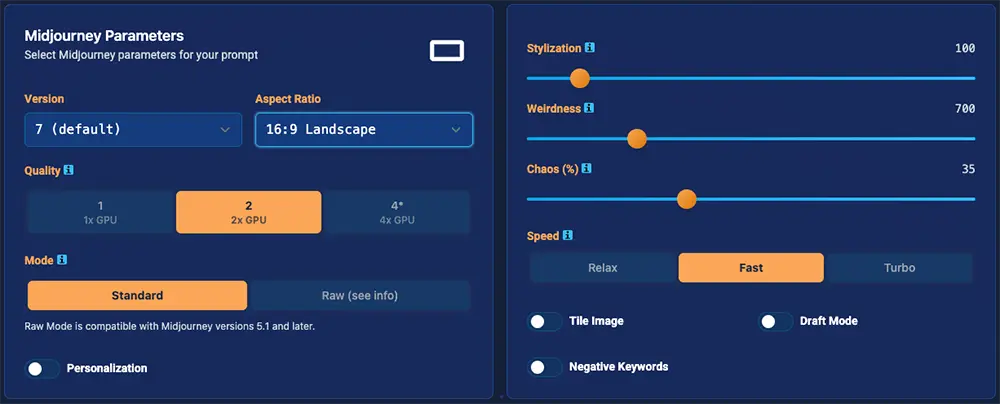
Image Settings
- • Aspect Ratio - Visual selector showing actual proportions (16:9, 1:1, 9:16, etc.)
- • Version - Select model version including V6.0, V6.1, V7 (default), Niji 6.0, plus legacy versions (V1-V5.2, Niji 4.0-5.0)
- • Quality - Image quality and GPU usage (1x, 2x, or 4x GPU). Higher values produce more detailed results.
- • Mode - Standard vs Raw processing modes
- • Personalization - Apply your personal Midjourney style code for consistent aesthetic preferences across generations.
Creative Controls
- • Stylization (0-1000) - Control artistic interpretation. Higher values = more stylized results.
- • Weirdness (0-3000) - Introduce creative variance. Higher values = more unexpected results.
- • Chaos (0-100) - Control composition randomness. Higher values = more varied grid results.
Additional Controls
Fine-tune your generation with these additional options. All settings update your Key Prompt in real-time.
- • Speed - Choose between Relax, Fast, or Turbo generation modes based on your Midjourney subscription and urgency.
- • Tile Image - Enable seamless tiling for creating repeatable patterns and textures.
- • Draft Mode - Generate quick preview images at lower quality for rapid iteration.
- • Negative Keywords - Specify elements to exclude from your image using the
--noparameter.
Style Selections
Access 1,500+ curated styles across 17 professional categories. Build complex prompts with a few clicks instead of typing lengthy descriptions.
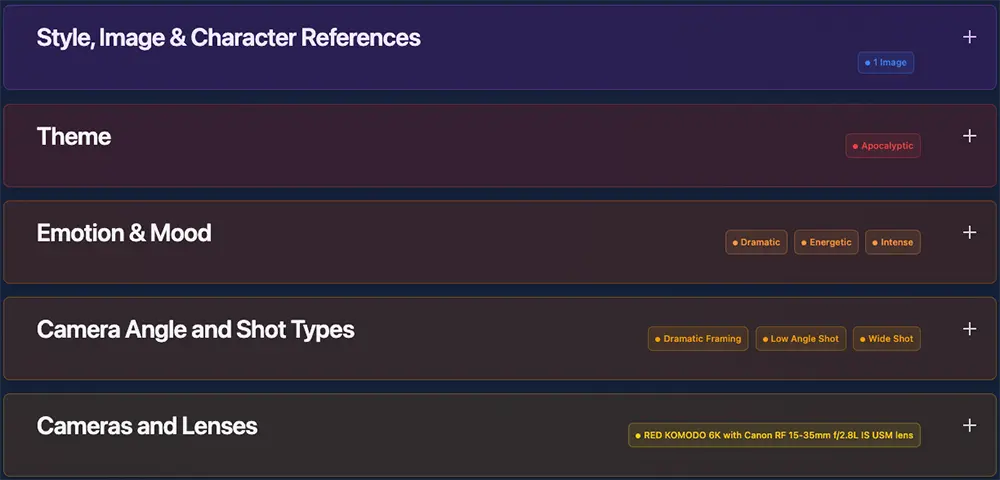
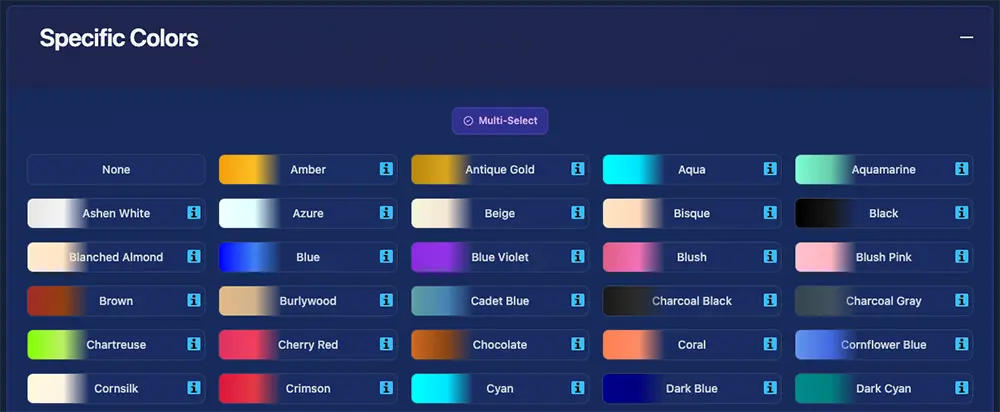
17 Style Categories
Each category contains dozens of professionally curated options. Look for the Single-Select or Multi-Select label in each accordion to understand your selection options.
How It Works
- 1 Expand any category accordion
Browse available styles within each category
- 2 Click style buttons to select/deselect
Selected styles highlight and add to your prompt
- 3 See active styles in header badges
Quickly review selections without expanding
- 4 Key Prompt updates automatically
Changes reflect instantly—no save needed
- 5 Combine styles across categories
Layer Theme + Mood + Lighting for best results
Style Features
- Single vs Multi-Select - Categories are clearly labeled. Single-select categories (like Theme) allow one choice, while multi-select categories let you combine multiple styles.
- Visual Tooltips - Theme and Artist styles include example images in their tooltips, helping you preview the aesthetic before selecting.
- Color Previews - Specific Colors and Color Palettes categories display actual color swatches in the selectors, so you can see exactly what you're choosing.
- Header Badges - Selected styles appear as badges in accordion headers, giving you a quick overview of your current selections at a glance.
Reference Management
Free Editor 2.0 uses URLs that you must copy and paste into the various code, and reference image type sections in the Style, Image & Character References accordion. In Pro Editor 3.0, you can upload and select images directly from the Prompt Library. To access the pro editor, sign up for a free account.
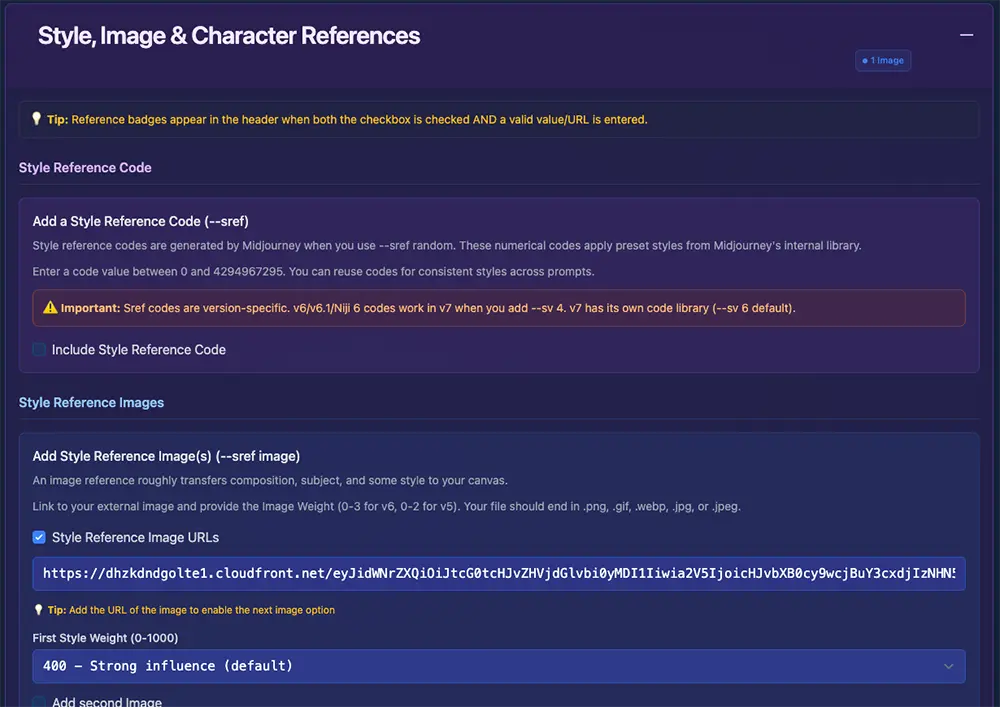
Image Prompts (--iw)
Add up to 4 image URLs with global weight control:
- • URLs placed at prompt start
- • Weight range: 0 to 3.0
- • Great for composition reference
Style References (--sref)
Add up to 4 style references with individual weights:
- • Each reference has its own --sw weight
- • Weight range: 0 to 1000
- • Also supports style reference codes
Character References (--cref)
V6+ & Niji 6Maintain character consistency:
- • Up to 4 character references
- • Individual --cw weights
- • Perfect for character series
Omni References (--oref)
V7 ONLYThe most versatile reference type:
- • Single image reference
- • Omni weight control (--ow)
- • Combines style and subject
Video Starting Frames
EDITOR ONLYSet a starting frame for Midjourney video generation. Your image becomes the first frame of the generated video.
Style Reference Codes
Enter numeric style codes directly. These are generated using --sref random in Midjourney and can be reused across prompts for consistent styling.
Version-Aware Features
MPM automatically adapts the interface based on your selected Midjourney version.
Automatic Migration
When you switch versions, MPM automatically handles reference compatibility:
Character References
Up to 4 --cref images
Omni References
Single --oref image
Switching from V6 to V7? Your first character reference automatically becomes an omni reference. Switching back? It converts to a character reference with default weight.
Caution
When switching from V6 Character References to V7 Omni References, only the first image in the Character Reference selections is chosen due to Midjourney limitations on the number of Omni References (4 images vs. 1 image).
Member Workflows: Pro Editor 3.0 and Project Workspaces
While the Free Editor 2.0 provides powerful prompt building capabilities, members gain access to enhanced workflows in both Pro Editor 3.0 and the Visual Project Workspace.
Pro Editor 3.0 Advantages
- • Library Image References - Select reference images directly from your Prompt Library instead of copying and pasting external URLs
- • AI Image Generation - Generate images directly in the editor using 12 AI models including FLUX.2, Recraft, GPT Image, Nano Banana, and more
- • AI Video Generation - Create videos with 14 AI models including Kling, Veo, Sora, Wan, and more
- • Prompt Library - Save, organize, and iterate on prompts across multiple projects
- • Team Collaboration - Share prompts with team members and collaborate on projects
- • Profile Images - Set any library image as your prompt's profile image for easy identification
Project Workspace Advantages
- • Multiple Simultaneous Generations - Run multiple AI generations at once across different prompts
- • AI Image & Video Generation - Access all 27 AI generation models directly on the canvas
- • Visual Reference Connections - Connect prompts with visual connectors to transfer references between them
- • Infinite Canvas - Organize your creative workflow on a zoomable, pannable workspace
- • Midjourney Quick Copy Workflows - MJ Image and MJ Video cards for quick copy to Midjourney Web UI or Discord
- • Integrated Libraries - Access Image and Video Libraries directly within the workspace
Which Should You Use?
Both the Pro Editor 3.0 and Project Workspace offer AI generation capabilities. Choose based on your workflow:
- • Pro Editor 3.0 - Best for focused work on a single prompt with full parameter control and style selections
- • Project Workspace - Best for managing multiple prompts, visual organization, and batch generation workflows
- • Free Editor 2.0 - Great for quick prompt building without an account, using external image URLs for references
Ready to Create?
Experience the MPM editor and discover how intuitive prompt creation can be.
Check out Project Workspace - our newest feature
Take your editor prompts to the next level with the Project Workspace—a visual canvas for organizing generations, managing references across multiple prompts, and building complete creative campaigns.
Visual Organization
Arrange generation cards on an infinite canvas. See your creative evolution at a glance.
Quick Reference Transfer
Connect two prompts to move references from one to another with a quick-select dialog to pinpoint the exact reference type you wish to add.
Two Workflows
MJ Image and MJ Video quick copy to Midjourney Web UI or Discord, plus 27 AI Generation cards for popular ImageGen and VideoGen models.