Team Collaboration
Work together seamlessly with shared projects, real-time activity tracking, and full collaborative editing.

Your Team Dashboard
The Teams page provides a high-level overview of all your teams in a clean, organized grid of cards. Each team card displays:
- Team Name - Your team's display name
- Member Count - Number of active team members
- Team Owner - The user who created and manages the team
- Team Status - Active or inactive indicator
- Quick Actions - Direct links to Settings and View Team
From here, you can quickly navigate to any team, create new teams (paid plans), and manage your collaborative workspace.
Managing Team Projects
The Team Viewer is your central hub for managing all projects associated with a specific team.
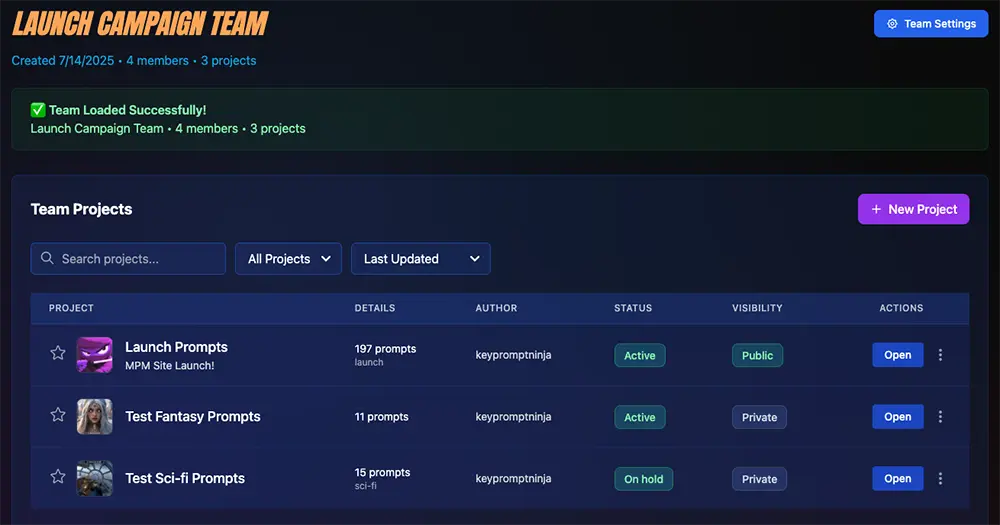
Project List Features
- • Project Details - View name, description, number of prompts, and hashtags
- • Author Attribution - See who created each project
- • Status Indicators - Active, On Hold, Completed, or Archived
- • Visibility - Public or Private project settings
- • Team Assignment - Projects clearly show their team association
Organization Tools
- • Search - Find projects instantly by name or description
- • Status Filters - Filter by Active, On Hold, Completed, or Archived
- • Alphabetical Sorting - Sort projects A-Z or Z-A
- • Star Projects - Mark important projects to appear at the top of listings

Activity Feed
Stay informed with the real-time activity feed showing recent team actions:
- • Project creation and updates
- • Prompt edits and additions
- • Member contributions
- • All activities logged with timestamps
Managing Your Team
Team owners have full control over their team through the Team Settings page.
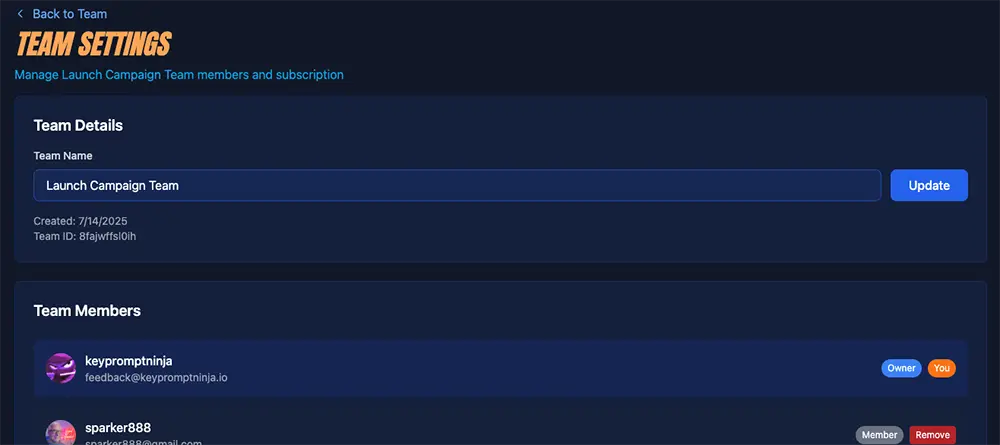
Team Identity
- • Update Team Name - Change your team's display name anytime
- • All name changes are logged in the activity feed
Member Management
- • View Members - See all team members with their name, avatar, and email
- • Invite Members - Add new collaborators via email invitation
- • Pending Invitations - Track and manage outstanding invites
- • Cancel Invitations - Remove pending invites before they're accepted
- • Remove Members - Remove collaborators (with confirmation)
Danger Zone
- • Delete Team - Permanently remove the team and all associated data
- Warning: This action cannot be undone and removes all team projects, prompts, and member associations
Quick Team Switching
Teams automatically appear in the main sidebar of the application for instant access.
- Team List - Up to 6 teams displayed directly in sidebar
- See More - Link to full Teams page for users with 7+ teams
- Quick Access - One-click navigation to any team's projects
- Visual Indicators - Team icons and member counts at a glance
This integration ensures you can switch between personal projects and team workspaces without leaving your current workflow.
Full Team Collaboration
Team members enjoy comprehensive collaborative capabilities within team projects.
| Feature | Owner | Member |
|---|---|---|
| Create projects | ✓ | ✓ |
| View all team content | ✓ | ✓ |
| Edit any team prompt | ✓ | ✓ |
| Clone team prompts | ✓ | ✓ |
| Upload images to prompts | ✓ | ✓ |
| Set profile images | ✓ | ✓ |
| Change prompt status | ✓ | ✓ |
| Delete prompts | ✓ | ✗ |
| Delete images | ✓ | ✗ |
| Invite members | ✓ | ✗ |
| Remove members | ✓ | ✗ |
| Delete team | ✓ | ✗ |
| Edit team settings | ✓ | View only |
Key Benefits
Subscription Plans
Team features are available to users with qualifying subscription plans.
| Plan | Team Creation | Team Members |
|---|---|---|
| Free | ✗ | ✗ |
| Creator | ✓ | Up to 5 |
| Studio | ✓ | Unlimited |
| Founder | ✓ | Up to 5 |
Community plan users will see upgrade prompts when attempting to access team features.
Getting Started with Teams
Quick Start Guide
- 1 Navigate to Teams - Click "Teams" in the sidebar or visit your Teams page
- 2 Create a Team - Click "Create Team" and enter your team name
- 3 Invite Members - Go to Team Settings and send email invitations
- 4 Create Projects - Add projects to your team from the Team Viewer
- 5 Collaborate - Team members can now view, edit, and iterate on shared prompts
Best Practices
- Consistent Naming - Use clear, descriptive team names for easy identification
- Project Organization - Create separate projects for different campaigns or clients (or you can use teams for this purpose if that suits your workflow)
- Use Starring - Star frequently accessed projects to keep them at the top
- Activity Monitoring - Check the activity feed to stay updated on team progress
- Team Communication - Use status indicators for both projects and prompts to enhance team workflows
Start Collaborating Today
Ready to supercharge your team's creative workflow? Upgrade to Creator or Studio to unlock full team collaboration features.