Image Library & Reference System
MPM's reference image system eliminates the tedious process of manually finding/uploading, copying/dragging, and configuring reference images in the Midjourney UI.
Building Your Image Library
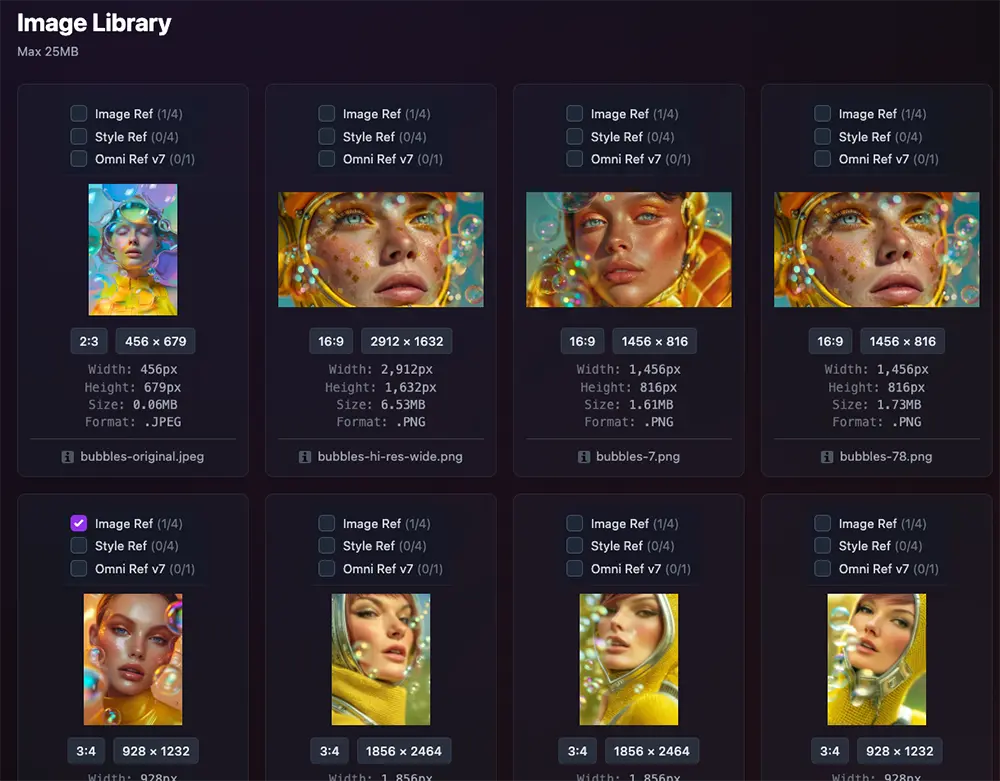
Every prompt in MPM includes a dedicated Image Library for storing and managing your AI-generated images and videos. This powerful feature transforms how you organize and reference your creative work—once images are uploaded, you can instantly use them as references with a single click.
At-a-Glance Information
For each image in your library, you can instantly see:
- • Thumbnail Preview - Visual representation of your image
- • Aspect Ratio - The proportions (16:9, 1:1, etc.)
- • Dimensions - Exact pixel width × height
- • Format - File type (PNG, WEBP, JPG)
- • Original Filename - Name of uploaded image or model name of generated/saved image
Image Actions
- • Copy Preview URL - Get a CloudFront URL for quick sharing
- • Download Full Resolution - Save the original high-quality image
- • Set as Profile Image - Make this the thumbnail for your prompt - it will be considered the select image of the prompt for display elsewhere such as the editor or gallery
- • Delete Image - Remove from library (owner only)
Storage & Delivery
Images are stored on AWS S3 and delivered through CloudFront CDN for lightning-fast global access. Full resolution images and videos are uploaded and always available, but low-res images are created for thumbnails with URLs for faster performance where it makes sense.
How to Upload Images and Videos
Click the Add Gallery Image or Add Gallery Video field to open the file selector dialog. You can select one or multiple files to upload at once.
Accepted image formats: PNG, JPG, JPEG, and WEBP (up to 25MB)
Accepted video formats: MP4, MOV, and WEBM (up to 100MB)


TIP
Reference image URLs can also be used in the prompt editor in the Style, Image & Character References accordion as well (but will not upload the image to the Image Library).
Managing Your Images
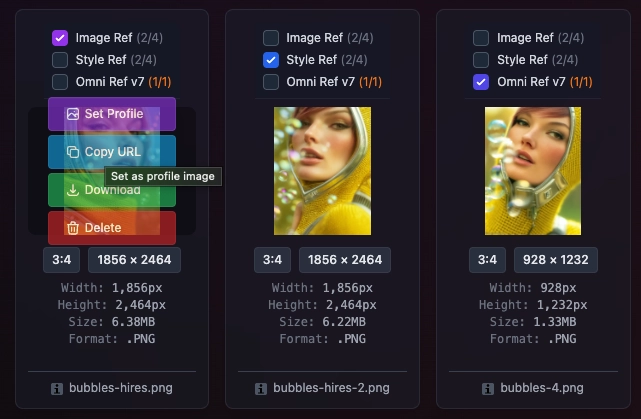
Each image in your library has four action buttons that appear when you hover over (or touch on mobile) the image:
Use this image as your prompt's profile/thumbnail
Copy the image URL to your clipboard
Download the image to your device
Permanently remove the image from your library
TIP
The options show when you hover or touch (mobile) any image in the library.
Managing Your Videos
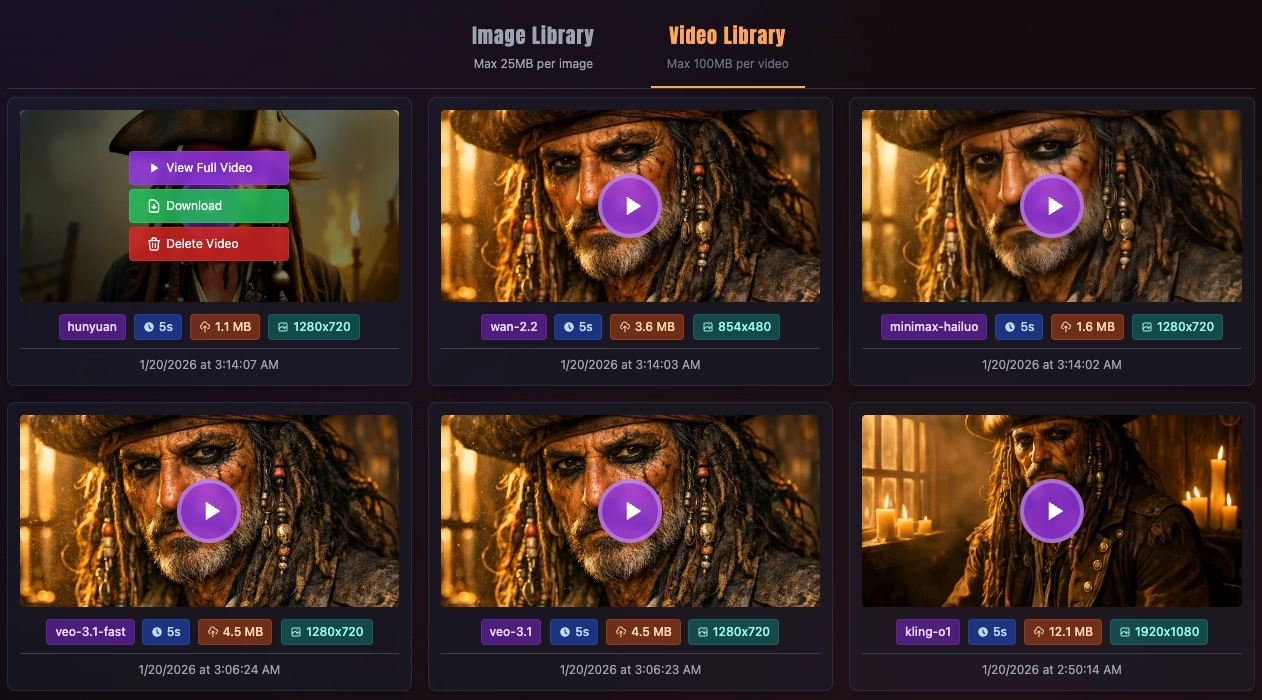
The Video Library stores your AI-generated videos. Each video card displays the model used, duration, file size, resolution, and creation date.
Each video has three action buttons that appear when you hover over (or touch on mobile) the video:
Open the video in a full-screen player
Download the video to your device
Permanently remove the video from your library
Coming Soon
Videos cannot currently be used as references, but video reference support will be added in a future update.
Prompt Library Reference Image Workflow
Adding or removing reference images is a one-click workflow—simply check or uncheck to instantly update your prompt. This speeds up your creative process dramatically.
Add a Reference
Choose the appropriate reference type for your image (Image Prompt, Style Ref, Character Ref, etc.) and click the checkbox. You'll receive a notification confirming the reference was added.
Remove a Reference
To remove a reference, simply uncheck the checkbox. You'll receive a notification confirming the reference was removed.
Automatic Configuration
MPM automatically handles all the technical details—adding the correct URL and parameters to your prompt instantly, so you can focus on creating.
Managing Library Refs with Checkboxes
Each library card features two sections of checkboxes: IMG for image generation references (three types specifically for Midjourney and one type for AI models like FLUX, Recraft, etc.) and VID for video generation references. When you select a reference, the image is instantly added to the Reference Images grid above the library with a color-coded border matching the reference type.

Midjourney References
These references are used when generating images with Midjourney via Discord.
MJ Image Ref (0/4)
Add images as direct image prompts. Purple border in Reference grid.
MJ Style Ref (0/4)
Extract artistic style from images. Blue border in Reference grid.
MJ Omni Ref v7 (0/1)
V7's versatile reference combining style and subject. Green border in Reference grid.
AI Gen Ref (0/14)
Reference images for AI image generation models (FLUX, Recraft, etc.). Orange border in Reference grid.
Video Generation References
These references are used when generating videos with AI video models.
Start Frame (0/1)
Set the opening frame for video generation. Sky blue border in Reference grid.
End Frame (0/1)
Set the closing frame for video generation. Amber border in Reference grid.
Element / Char (0/4)
Kling O1 OnlyCharacter/element references specifically for the Kling O1 video model. Pink border in Reference grid.
Color-Coded Visual Feedback
When you check a reference box, the image appears in the Reference Images grid above the library with a colored border matching the reference type. This makes it easy to see which images are assigned to which reference categories at a glance.
Midjourney Reference Types Deep Dive
Midjourney supports four different reference types, each serving a unique purpose in your creative workflow.
Editor-Only Features
Fine-tuned control of Midjourney reference parameters—such as image weights (--iw), style weights (--sw), character weights (--cw), and Code References—are available in the Editor only, not in the Project Workspace by design as default weights often work well.
Image Prompts (--iw)
Use library images as direct image prompts to guide the overall composition and content of your generation.
Best For:
- • Creating variations of existing images
- • Blending multiple reference images together
- • Guiding overall composition and layout
- • Incorporating specific visual elements
Parameters:
- • Up to 4 image URLs
- • Global weight:
--iw 0to--iw 3 - • URLs placed at prompt start
Style References (--sref)
Extract and apply artistic style from reference images without copying their content.
Best For:
- • Maintaining consistent aesthetic across prompts
- • Applying specific art styles (watercolor, oil painting, etc.)
- • Matching color palettes and tonal qualities
- • Creating cohesive image series
Parameters:
- • Up to 4 style references
- • Individual weights:
--sw 0to--sw 1000 - • Also supports numeric style codes
Character References (--cref)
V6, V6.1 & Niji 6Maintain character consistency across multiple generations—perfect for creating character series.
Best For:
- • Same character in different poses or scenes
- • Character turnarounds and model sheets
- • Story illustrations with recurring characters
- • Multi-character scenes with multiple refs
Parameters:
- • Up to 4 character references
- • Individual weights:
--cw 0to--cw 100 - • Works with V6, V6.1, and Niji 6
Omni References (--oref)
V7 FEATUREThe most versatile reference type in V7—combines style and subject guidance in a single reference.
Best For:
- • Combining style and subject in one reference
- • Maximum creative flexibility
- • V7's enhanced reference understanding
Parameters:
- • Single image reference
- • Omni weight:
--ow 0to--ow 100 - • V7 exclusive feature
MPM Provides Reference Intelligence
When you select a reference type, MPM automatically handles all the technical details.
Common Errors MPM Prevents:
- • Incorrect URL formats that Midjourney can't read
- • Missing or malformed weight parameters
- • Parameter placement issues (--iw at end instead of with URL)
- • Mixing incompatible reference types for the selected version
- • Prevents improper references from being passed such as model-specific parameters
Three Ways to Add References
MPM offers three methods for adding reference images to your prompts. All stay in sync—changes made in one are reflected in the others.
Image Library Checkboxes
Quick selection from your uploaded images.
- One-click checkbox toggles
- Uses default weight values
- Best for fast workflows
Editor Reference Fields
Full control with manual URL entry and weights.
- Precise weight control
- External URLs supported
- Best for fine-tuned results
Project Workspace
Visual drag-and-drop reference management.
- Drag images between cards
- 8 color-coded reference types
- Best for visual workflows
TIP
Start with library checkboxes for quick selection, use the editor for precise weight control, or use the Project Workspace for visual reference selection workflows. All three methods stay synchronized.
Visual Reference Management
The Project Workspace takes reference management to the next level with a visual drag-and-drop interface featuring 8 color-coded reference types.
8 Reference Types
Color-coded for instant recognition:
Connected Libraries Workflow
Connect prompt cards with connectors to share image libraries. Use the Add Refs button on any prompt card to select images from connected cards' libraries. Once a reference is established, the image is automatically added to the receiving prompt's library.
Start Using References
Upload your images and experience how easy reference management can be.