Prompt Details
Your command center for managing individual prompts—track analytics, upload profile images, share your work, and copy prompts in formats optimized for Midjourney, Nano Banana, and other AI image generators.
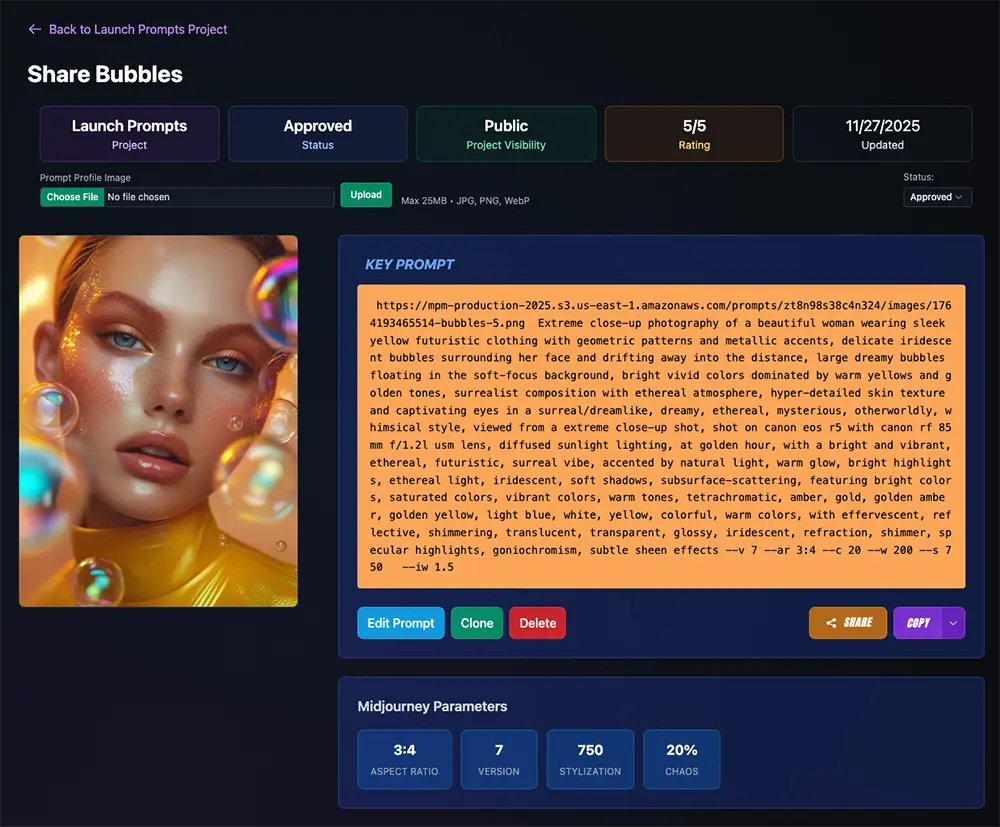
Overview
The Prompt Details page is where your saved prompts come to life. View comprehensive analytics, manage images, share your work publicly or privately, and copy prompts in formats optimized for different AI tools—all from one powerful interface.
Key Features
- Prompt Analytics: Project, Status, Project Visibility, Gallery Rating (if public), and the Updated date of the last changes.
- Profile Image: Set the selected image to represent the prompt (used as thumbnails and provides quick access to copy its URL and download the image in multiple places)
- Image/Video Library: Keep your assets organized by type and add them as references with one-click selection checkboxes
- Multi-Platform Copy: Optimized formats for Midjourney, Nano Banana, and more
- Share Anywhere: Copy sharable links (for publicly viewable prompts)
Prompt Header
The header displays your prompt name with an edit icon, at-a-glance info badges, and a status selector.
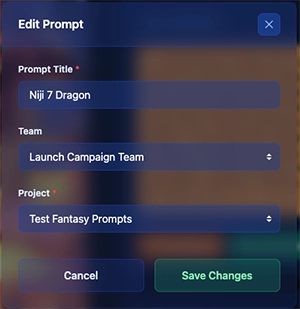
Edit Icon
Click the edit icon next to the prompt name to change the prompt name, reassign to a different project, or move to a different team.
Info Badges
Project
Shows the project this prompt belongs to.
Status
Current workflow status: Working or Approved.
Project Visibility
Shows if the project is Private or Public.
Rating
Average community rating (1-5 stars) or Unrated.
Updated
Date the prompt was last modified.
Status Selector
Use the Status dropdown on the right side of the header to mark your prompt as Working (in progress) or Approved (finalized).
Profile Image
Your profile image is the visual thumbnail for your prompt—what appears in galleries, project grid, and artist profile pages (if the project is set to public).
Set Your Profile Image
Click the Set Profile button on the profile image to open the selection modal. From there you can:
Select from Library
Choose any image from your Image Library. The profile image updates immediately when selected.
Upload New Image
Upload a new image from your device. Accepted formats: PNG, JPG, JPEG, WEBP (max 25MB).
The selected image becomes your prompt's visual identity across MPM, used as thumbnails in project views and galleries.
Portrait Format
Profile images are automatically cropped to portrait orientation (2:3 aspect ratio, 280×420px) for consistent gallery display. Wide images will be center-cropped. NOTE: you can still see the aspect ratio in the image library and the profile image shows in it's native aspect ratio in the editor for clarity.
Key Prompt Display
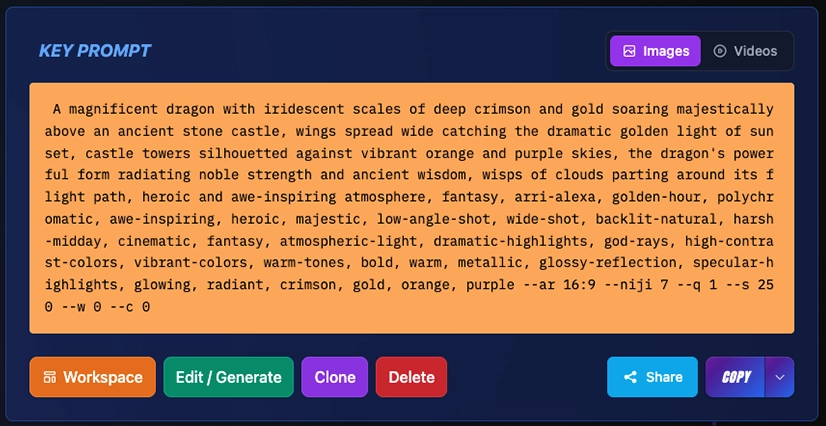
The Key Prompt box shows your complete, formatted prompt text—exactly what you'll paste into your AI image or video generator. Use the Image Key Prompt and Video Key Prompt toggle to switch between the two Key Prompts associated with your prompt.
Image Key Prompt
Video Key Prompt
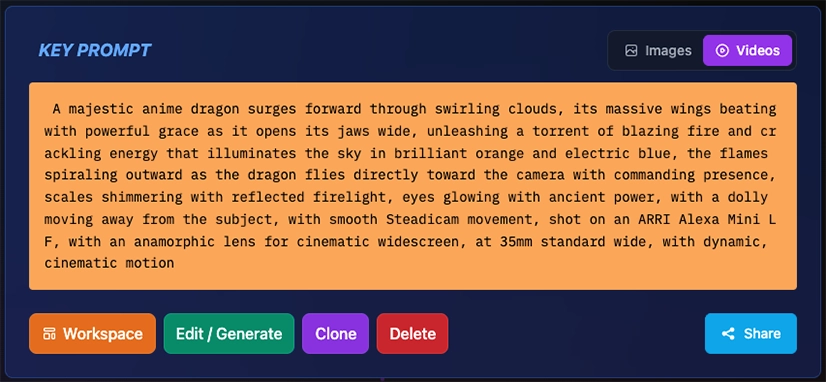
The Video Key Prompt displays saved video parameters including Model, Duration, Aspect Ratio, and Resolution.
What You'll See
- • Complete Prompt: Base prompt + all MPM theme & style selections
- • Reference URLs: Image prompts, style refs, character refs automatically included
- • Midjourney Parameters: Aspect ratio, version, quality, stylization, chaos, and more
- • Video Parameters: Model, duration, aspect ratio, and resolution (for Video Key Prompt)
Multi-Platform Copy Button
Click the COPY button to access three optimized formats:
For Midjourney
Full prompt with all parameters (--ar 16:9 --v 7 --s 750) and reference image URLs
For Nano Banana
Stripped parameters + natural language aspect ratio ("with 16:9 aspect ratio")
For Other ImageGen
Clean prompt compatible with most AI image generators
Image Library & Video Library
Each prompt includes both an Image Library and Video Library for storing your AI-generated content. Learn more in the Library & Image Refs documentation.
Share Your Work (or not) - Visibility Settings
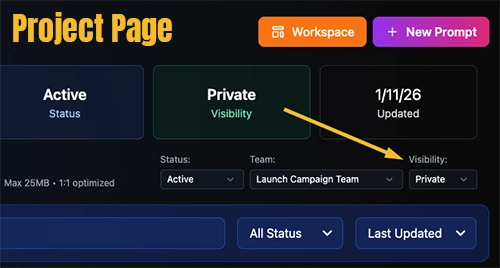
To share your prompts, set your project's visibility to Public. This enables your prompts to appear in MPM's gallery and allows you to generate share links.
Public Gallery
When your project is set to Public, prompts appear in MPM's homepage gallery and public search. Benefits:
- ✓ Community discovery and ratings
- ✓ Build your portfolio
- ✓ Get inspiration from others
Share Links
For public prompts, click SHARE to generate a branded short link (powered by Dub.co):
https://mpm-midjourney.link/ABC123-username-key-prompt
Links are permanent, trackable, and include OpenGraph previews for social media.
Visibility settings for Projects
Only Public prompts can be shared publicly. Visibility is controlled at the project level—change the privacy setting for Visibility on the project page to affect all prompts in the project (not individually controlled).
Action Buttons
Five powerful actions are always available at the top of your prompt page.
Workspace
Opens your prompt in the Project Workspace—a visual canvas for managing references, connecting prompts, and generating AI images and videos with drag-and-drop ease.
Edit / Generate
Opens the prompt editor with all your current data pre-loaded. Modify the base prompt, change style selections, update parameters, add reference images, or generate AI images and videos.
Clone Prompt
Creates a duplicate of your prompt with all settings, styles, and parameters—but with a clean slate for references and images. Perfect for creating variations or starting a new iteration.
Delete Prompt
Permanently removes the prompt and all associated images from MPM. This action cannot be undone. Available to prompt owners, project owners, and team owners.
Share
Generate a branded short link to share your prompt. Links work for both public and private prompts—recipients can view without the prompt appearing in public galleries.
Midjourney Parameters
All Midjourney parameters are displayed as visual badges for quick reference—no need to parse the prompt text.
Parameter Badges
Parameters are displayed as visual badges when set to non-default values:
Video Parameter Badges
When viewing video prompts, the parameters display shows video-specific settings:
Image Library & Reference Images
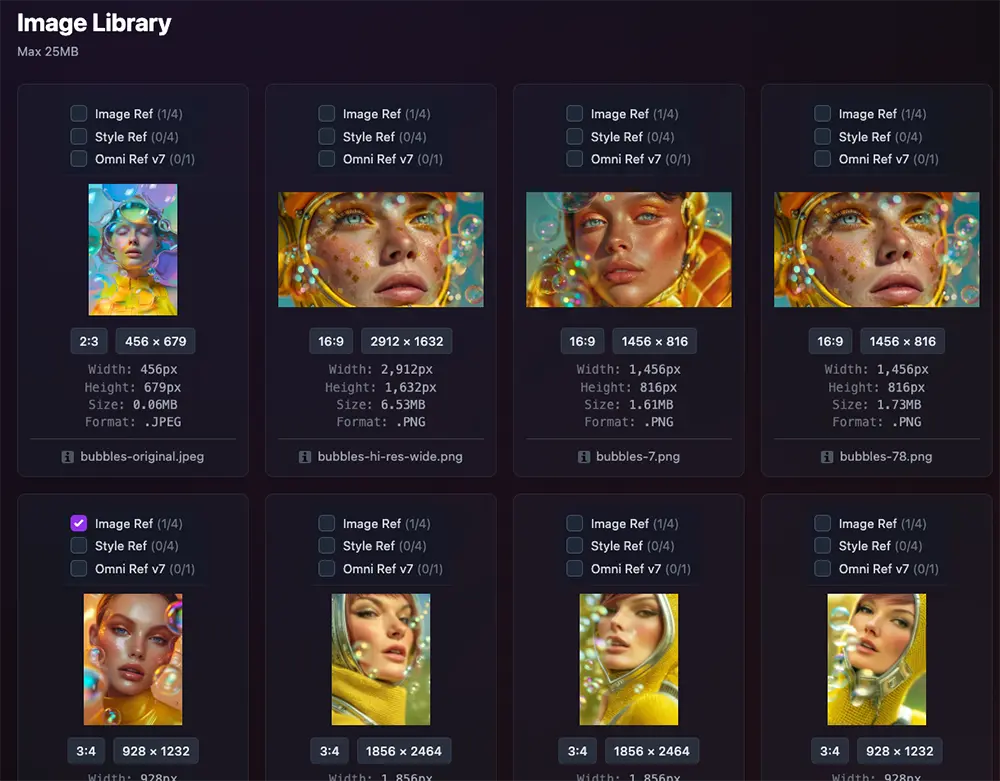
Every prompt includes a dedicated Image Library for storing Midjourney outputs and managing reference images.
Quick Overview
- Upload Multiple Images & Videos: Drag and drop or click to select (Images: PNG, JPG, JPEG, WEBP | Videos: MP4, MOV, WEBM supported)
- One-Click References: Convert library images to Image Prompts, Style Refs, or Character Refs via checkboxes
- Image Actions: Download, copy URL, set as profile, or delete
TIP
Hover over images or videos in the library (or touch for mobile) to see additional options for library assets including setting profiles, copying URLs, downloading and delete functions.
For complete details on uploading, managing, and using reference images:
Read the Reference Image System GuideReady to Manage Your Prompts?
Create a new prompt and explore all the features of the Prompt Details page.